krita short custs
krita short custs
Here are some suggestions to get the most out of Krita:
General Tips:
- Learn the Shortcuts: Krita has a lot of powerful features, and learning the shortcuts can significantly speed up your workflow.
- Explore the Brush Engine: Krita's brush engine is very flexible. You can create custom brushes for a variety of effects.
- Use Layer Groups: Organizing your layers into groups can help you manage complex scenes more easily.
- Take Advantage of the Animation Features: Krita has a powerful animation pipeline that can be used to create 2D animations.
- Join the Community: The Krita community is very active and helpful. There are many resources available, including forums, tutorials, and user groups.
Specific Suggestions:
- Improve Your Workflow: Experiment with different brush settings and layer techniques to find what works best for you.
- Learn from Tutorials: There are many great Krita tutorials available online. Watching tutorials can help you learn new techniques and improve your skills.
- Practice Regularly: The more you use Krita, the better you will become at it.
- Experiment and Have Fun: Don't be afraid to experiment with different features and techniques. Krita is a powerful tool that can be used for a wide variety of creative projects.
Additional Resources:
- Krita Documentation: [invalid URL removed]
- Krita Forum: [invalid URL removed]
- Krita YouTube Channel: [invalid URL removed]
I hope these suggestions help you get started with Krita! Let me know if you have any other questions.
------------------------------------------------------------------------------------------------------------------------
Windows version short cuts:
Here are some fundamental shortcuts to get you started:
Basic Navigation and Editing:
- Undo: Ctrl+Z
- Redo: Ctrl+Shift+Z
- Cut: Ctrl+X
- Copy: Ctrl+C
- Paste: Ctrl+V
- Select All: Ctrl+A
- Deselect All: Ctrl+D
Layer Management:
- Create a New Layer: Ctrl+Shift+N
- Delete a Layer: Delete
- Duplicate a Layer: Ctrl+J
- Merge Down: Ctrl+E
- Merge Visible: Ctrl+Shift+E
- Group Layers: Ctrl+G
- Ungroup Layers: Ctrl+Shift+G
Brush and Canvas Manipulation:
- Zoom In: Ctrl+Plus
- Zoom Out: Ctrl+Minus
- Zoom to Fit: Ctrl+0
- Pan Canvas: Spacebar + Drag
- Rotate Canvas: Ctrl+] or Ctrl+[
- Flip Canvas Horizontally: Ctrl+H
- Flip Canvas Vertically: Ctrl+Shift+H
Color and Selection:
- Switch Foreground and Background Colors: X
- Reset Colors to Default: D
- Pick Color from Canvas: Click on the canvas with the Color Picker tool
- Select All Opaque Pixels: Ctrl+Click on the layer thumbnail
Remember:
- These are just a few of the many shortcuts available in Krita.
- You can customize shortcuts to fit your workflow.
- To access the full list of shortcuts and customize them, go to Settings > Configure Krita > Keyboard Shortcuts.
Practice makes perfect! The more you use these shortcuts, the faster and more efficient your workflow will become.
Would you like to learn more about specific tools or techniques in Krita?
------------------------------------------------------------------------------------------------------------------------
Krita Shortcuts for Mac
While many Krita shortcuts are consistent across platforms, here are some key differences for Mac users:
Basic Navigation and Editing:
- Undo: Command+Z
- Redo: Command+Shift+Z
- Cut: Command+X
- Copy: Command+C
- Paste: Command+V
- Select All: Command+A
- Deselect All: Command+D or Command + Shift + A
Layer Management:
- Create a New Layer: Command+Shift+N or Command + N
- Delete a Layer: Delete
- Duplicate a Layer: Command+J
- Merge Down: Command+E
- Merge Visible: Command+Shift+E
- Group Layers: Command+G
- Ungroup Layers: Command+Shift+G
Brush and Canvas Manipulation:
- Zoom In: Command+Plus
- Zoom Out: Command+Minus
- Zoom to Fit: Command+0
- Pan Canvas: Spacebar + Drag
- Rotate Canvas: Command+] or Command+[
- Flip Canvas Horizontally: Command+H
- Flip Canvas Vertically: Command+Shift+H
Alternative Methods to Flip the Canvas:
While the shortcuts aren't working, you can still flip the canvas using these methods:
1. Image Menu:
- Go to the Image menu.
- Select Transform.
- Choose Flip Horizontal or Flip Vertical.
2. Transform Tool:
- Select the Transform Tool from the toolbox.
- Click on your canvas to activate the transform mode.
- Use the handles to flip the canvas horizontally or vertically.
3. Python Script:
- If you're comfortable with Python scripting, you can write a script to flip the canvas programmatically.
Remember to save your work before attempting any of these solutions, as unexpected issues can occur.
Color and Selection:
- Switch Foreground and Background Colors: X
- Reset Colors to Default: D
- Pick Color from Canvas: Click on the canvas with the Color Picker tool
- Select All Opaque Pixels: Command+Click on the layer thumbnail
Remember:
- These are just a few of the many shortcuts available in Krita.
- You can customize shortcuts to fit your workflow.
- To access the full list of shortcuts and customize them, go to Settings > Configure Krita > Keyboard Shortcuts.
If you have any specific questions about a particular tool or technique, feel free to ask!
To use the Color Picker tool in Krita to select a color from your canvas:
-
Select the Color Picker Tool:
- You can find the Color Picker tool in the Toolbox on the left side of the Krita window. It's usually represented by an eyedropper icon.
-
Click on the Desired Color:
- Click on the specific pixel on your canvas that you want to sample the color from. The color picker will automatically pick up the color and update your foreground color.
That's it! You've successfully picked a color from your canvas using the Color Picker tool.
Additional Tip:
- You can also use the keyboard shortcut
Ctrl(orCmdon Mac) to temporarily activate the Color Picker tool while using another tool. This allows for quick color sampling without switching tools.
By following these steps, you can easily incorporate colors from your artwork into your painting process.
------------------------------------------------------------------------------------------------------------------------
To rotate the canvas in Krita, follow these steps:
1. Using Keyboard Shortcuts
- Rotate Left: Press
Shift + [(bracket key). - Rotate Right: Press
Shift + ](bracket key). - Reset Rotation: Press
Shift + 0to reset the canvas to its default orientation.
2. Using the Canvas Rotation Tool
- Hold the Shift + Spacebar keys.
- Then, click and drag the canvas in the direction you want to rotate.
3. Using the Touch Gesture
- If you are using a tablet or touch-enabled device:
- Use two fingers to rotate the canvas, similar to rotating a photo on a touchscreen.
4. Using the Navigation Docker
- Open the Navigation Docker (if not already visible):
- Go to Settings > Dockers > Navigation.
- In the Navigation Docker, use the rotation slider or buttons to rotate the canvas.
5. Using the Toolbar
- Look for the canvas rotation icons in the toolbar (small circular arrows).
- Click on them to rotate the canvas left or right.
Let me know if you need further assistance!
------------------------------------------------------------------------------------------------------------------------
Image
<img src="https://docs.krita.org/en/_images/popup-palette-detail.svg" alt="Pop-Up Palette" style="max-width:100%; height:auto;">

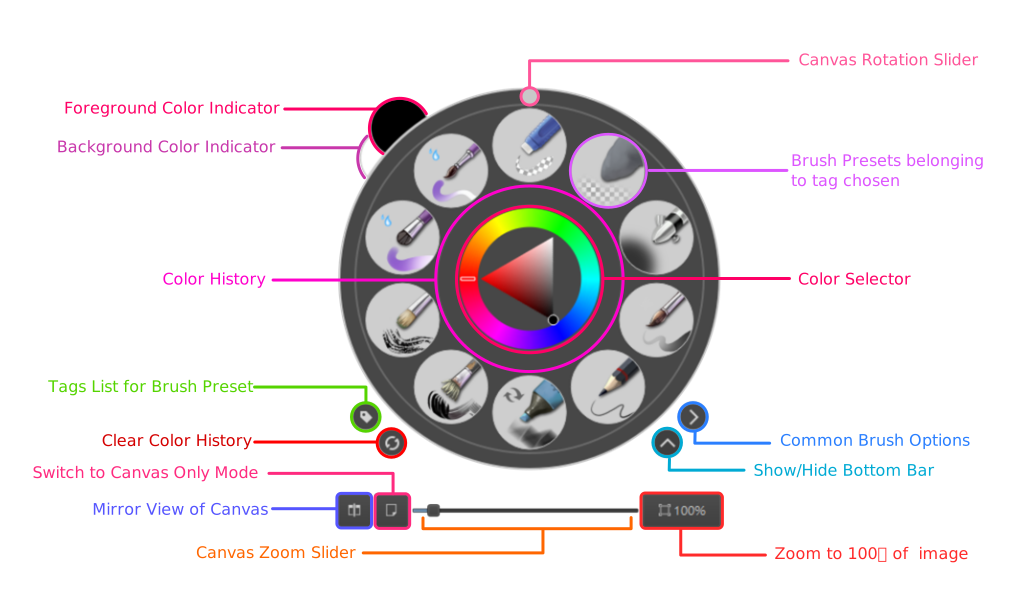
The round shape you see when you right-click on the canvas in Krita is called the Pop-Up Palette. Here's what it is and how it works:
Name: Pop-Up Palette
Purpose and Use:
Quick Brush Selection:
- It displays a ring of your favorite brushes (from your active brush presets).
- You can quickly switch brushes without opening the Brush Presets docker.
Quick Color Picking:
- In the center of the palette, you'll see a color selector.
- You can choose a color directly or pick a color from the canvas.
Context Menu Replacement:
- It's designed for efficiency, allowing you to access key tools without navigating menus.
Adjustable Layout:
- The brushes and colors shown can be customized to suit your workflow.
- To add/remove brushes: Drag presets into or out of the palette from the Brush Presets docker.
Shortcut to Access Pop-Up Palette:
- Right-Click anywhere on the canvas.
- Or, press and hold Shift + Right-Click (if the right-click is remapped to another action).
Let me know if you'd like to customize it further or need help setting up your favorite tools!
Comments
Post a Comment